
Companion allows you to easily download any content onto your device. Here is our guide to the download feature.
- From your Companion home page, open the content you’d like to download. You can do this by selecting the ‘Content’ tab at the top of the screen

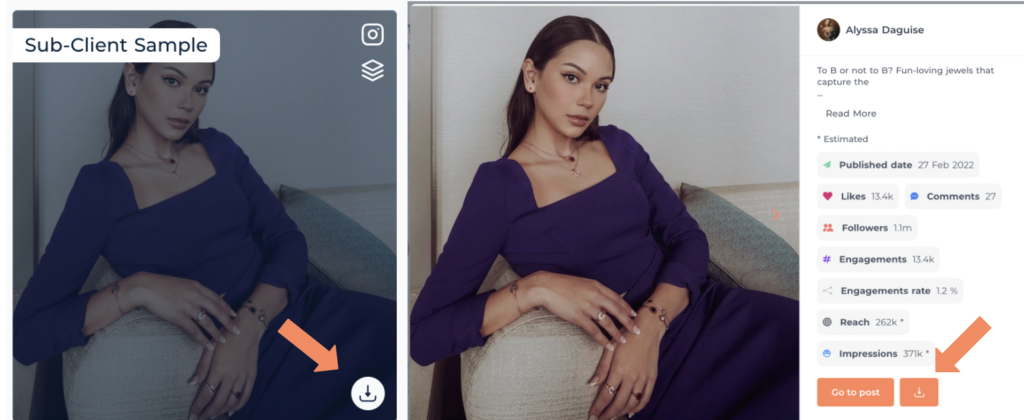
2. In the ‘Content’ tab if you hover your cursor over the desired piece of content, a small white download icon will appear in the bottom right of the image.

To download the content select the download icon.
3. If you open a piece of content in Companion you can also download the content by clicking the orange download icon that will appear on the bottom right of the screen.

4. If you would like to download campaign specific content select the ‘Campaigns’ tab from your companion home page

5. Select your desired campaign

6. And open the ‘Campaign content’ tab on the left hand side of the page.

7. In the ‘Campaign content’ tab you will have the option to download individual pieces of content as shown above
8. However you’ll also have the option to download all of the content from a campaign using the ‘download content’ button found at the top of the page
